Essential Computer Maintenance: Clean and Optimize Your PC in 2026
Learn how to clean, optimize, and maintain your PC in 2026. Step-by-step tips to boost performance, prevent overheating, and extend your computer’s life.
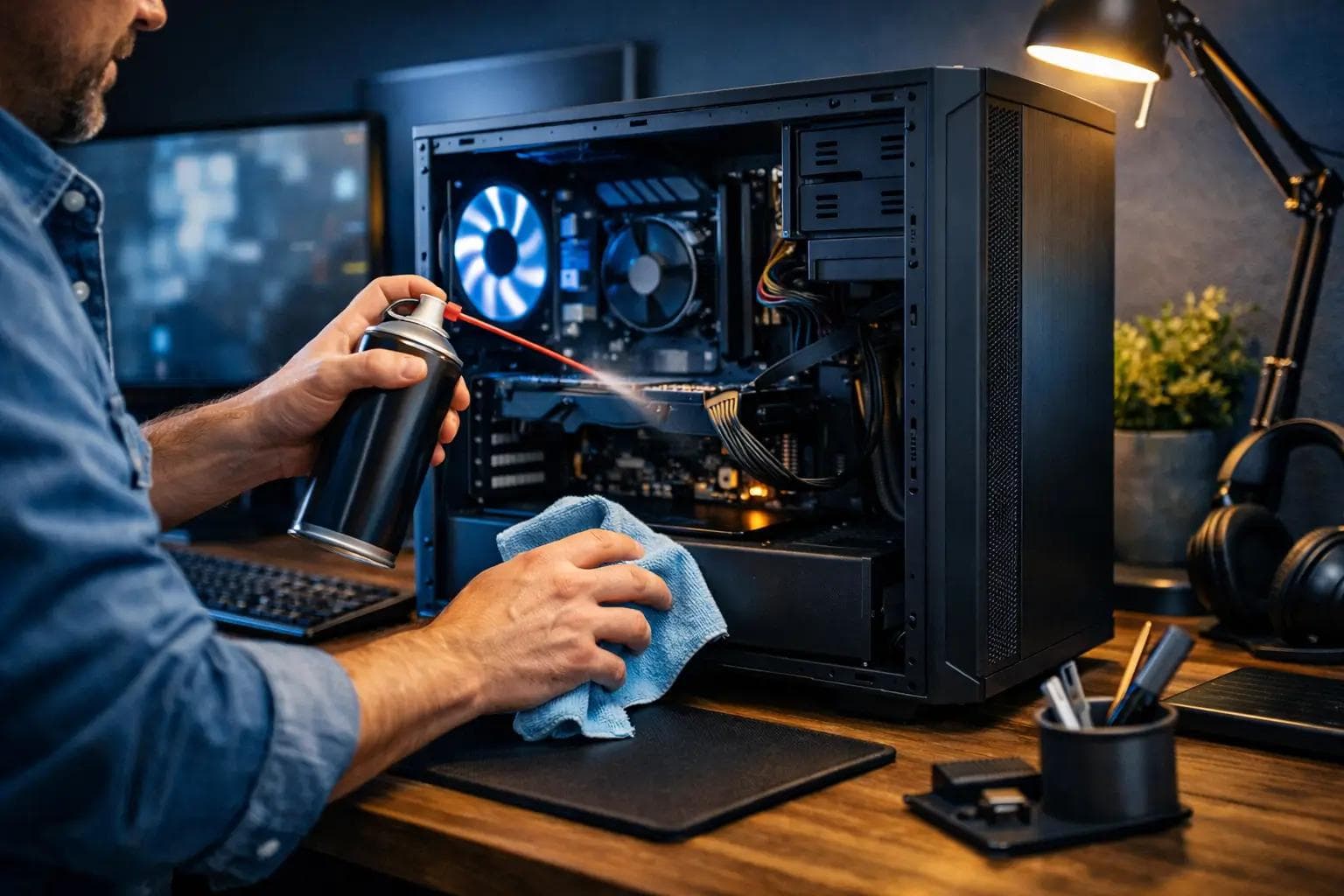
Keeping a PC clean—inside and out—is just as important as keeping it functional. Dust and digital clutter can cause overheating, slow performance and even shorten the lifespan of your computer[1]. Whether you’re a retiree who relies on a laptop for video calls or a small‑business owner who can’t afford downtime, a little regular maintenance goes a long way. This guide explains how to physically clean your computer, tidy up its software and files, and recognize when it’s time to call in the pros.
Why maintenance matters
Over time, dust accumulates inside desktops and laptops, clogging fans and vents. This buildup makes your computer run hotter and noisier, which can lead to component failure. Digital clutter—unused programs, temporary files, a full recycle bin—also slows down performance[2]. Routine cleaning helps your PC stay fast, safe and reliable.
Physical cleaning: what to do and when
Safety first: Shut down your PC and unplug it before cleaning. Never use a vacuum cleaner inside a computer—it can generate static electricity and damage sensitive components[3]. Instead, use compressed air and a soft microfiber cloth.
Monthly tasks:
Wipe down the exterior. Use a microfiber cloth to gently clean your keyboard, mouse, monitor and computer case[4].
Clear browser cache and cookies. This keeps your online experience smooth and frees storage.
Run a quick malware scan. Early detection prevents deeper issues later.
Quarterly tasks:
Remove dust from vents and fans. Spray compressed air into the vents to dislodge dust. Hold the can upright and use short bursts to avoid moisture[4].
Inspect fans and cables. Ensure fans spin freely and cables are not pinched or obstructing airflow.
Run Disk Cleanup and update software. (More on this below.)
Annual tasks:
Deep clean internal components. Disconnect the case, gently blow dust off the motherboard, power supply and heat sink. If you’re comfortable, replace old thermal paste on the CPU to improve heat transfer[4].
Check all cables and connectors to ensure nothing has come loose over time[5].
Back up important files and consider a full system tune‑up from a professional.
Cleaning frequency can vary. Homes with pets or smokers may need more frequent dusting, while less dusty environments may need only bi‑annual deep cleaning[3]. If you’re uneasy about opening a PC, call an expert.
Digital cleaning: tidy up your system
Just like physical dust, digital clutter slows your PC. Here’s how to clear it:
Use Disk Cleanup: Windows’ built‑in Disk Cleanup tool helps remove temporary files, downloaded program files and thumbnails[6]. To use it:
- Open the Start menu and search for “Disk Cleanup.”
- Select the drive you want to clean (usually C:). The tool estimates how much space you can free[6].
- Check the boxes for file types you want to delete, such as temporary internet files and thumbnails. Click Clean up system files to remove system files like old Windows updates. Note: deleting the Windows.old folder will remove your ability to roll back to a previous version of Windows[7].
Remove bloatware and unused programs: Uninstall software you no longer need. Consider compressing your OS drive to save space and using cloud‑storage features like OneDrive’s Files On‑Demand[8][9].
Move files off the main drive: Transfer photos, videos and large files to an external hard drive or cloud storage, then delete the originals to free space[10].
Perform system maintenance:
Update Windows and drivers regularly to patch security holes.
Run disk defragmentation or optimization (if using an HDD) to improve file organization.
Enable automatic updates and Storage Sense (or scheduled Disk Cleanup) to handle routine file cleanup for you[2].
Run antivirus scans—a virus can take up space or slow your system[11].
Clear browsing data and extensions: Removing old browser history, cookies and unused extensions frees memory and reduces security risks[2].
Tips to keep your PC clean longer
Elevate your computer. Position desktops off the floor to reduce dust intake[12].
Use dust filters. Install filters on intake fans and clean them regularly[12].
Keep pets away. Pet hair and dander accelerate dust buildup[12].
Maintain airflow. Leave a few inches of space around your PC for ventilation and avoid cramming it into tight cabinets[12].
Don’t eat or drink near your computer. Spills can damage keyboards and internal components[12].
Signs it’s time to clean or upgrade
You might notice:
Louder fan noise or constant whirring[5].
High temperatures—the computer feels hot to the touch or shuts down unexpectedly.[5]
Visible dust buildup around vents or inside the case.
Sluggish performance despite minimal programs running.[13]
Unusual noises (whining, clicking) which could indicate failing parts.
If you see these signs and feel uncomfortable tackling the issue yourself, it’s time to call a professional.
How CallTechCare can help
Regular maintenance might seem simple, but opening a PC or running system tools can be daunting—especially for those who rely on their computer for work or for staying in touch with family. CallTechCare offers comprehensive computer tune‑ups and optimization services for seniors and small businesses. Our technicians can safely clean your hardware, remove malware, organize files and update software. We’ll also teach you how to perform basic maintenance and set up automated backups so you never lose important data. Whether you need a routine clean or your PC shows signs of trouble, reach out and let our friendly experts keep your computer running smoothly.
We proudly provide in-home and small business computer maintenance services across South Florida.
Sources
- HP Tech Takes – Regular maintenance keeps dust and digital clutter from harming your PC’s performance and lifespan[1]. The article outlines digital cleaning tasks, monthly, quarterly and annual maintenance, and tips for keeping your PC clean[2][4][12]. It warns against using vacuum cleaners inside computers and explains when to seek professional help[3][5].
- Microsoft Support – Free up drive space – Explains how to use the Disk Cleanup tool, which files can be removed and cautions about deleting the Windows.old folder[14]. Provides tips for moving personal files, compressing the OS drive, using OneDrive’s Files On‑Demand and running antivirus scans to free space[10][8][15].

Remote Tech Support: Save Time and Stress in 2026
Remote tech support provides fast, secure help over the internet—saving time,…
Why Your Printer Keeps Failing When You Need It Most
Printers often fail at the worst time. Learn why printer issues happen and how…
Computer & Printer Support: Reliable Technology for Home and Work
Computer and printer problems can disrupt work and home life. Learn how…